
How do I terminate or close a job?
Close a Job - Job Status: Filled- Open the Company dropdown menu.
- Choose "Jobs" from the menu.
- Pick the specific job you want to close.
- Access the dropdown menu located next to "Filled."
- Select "Closed" from the options.
The Job Status will change to Closed. Your Virtual Team Member will be informed that the job is no longer active. If there are any outstanding payments, they will be processed through the standard payment procedure.
Close a Job - Job Status: HiringApplicants who applied to the job will receive a notification that the job is no longer accepting applications.
- Open the Company dropdown menu.
- Choose "Jobs" from the menu.
- Pick the specific job you want to close.
- Access the dropdown menu located next to "Hiring."
- Select "Closed" from the options.
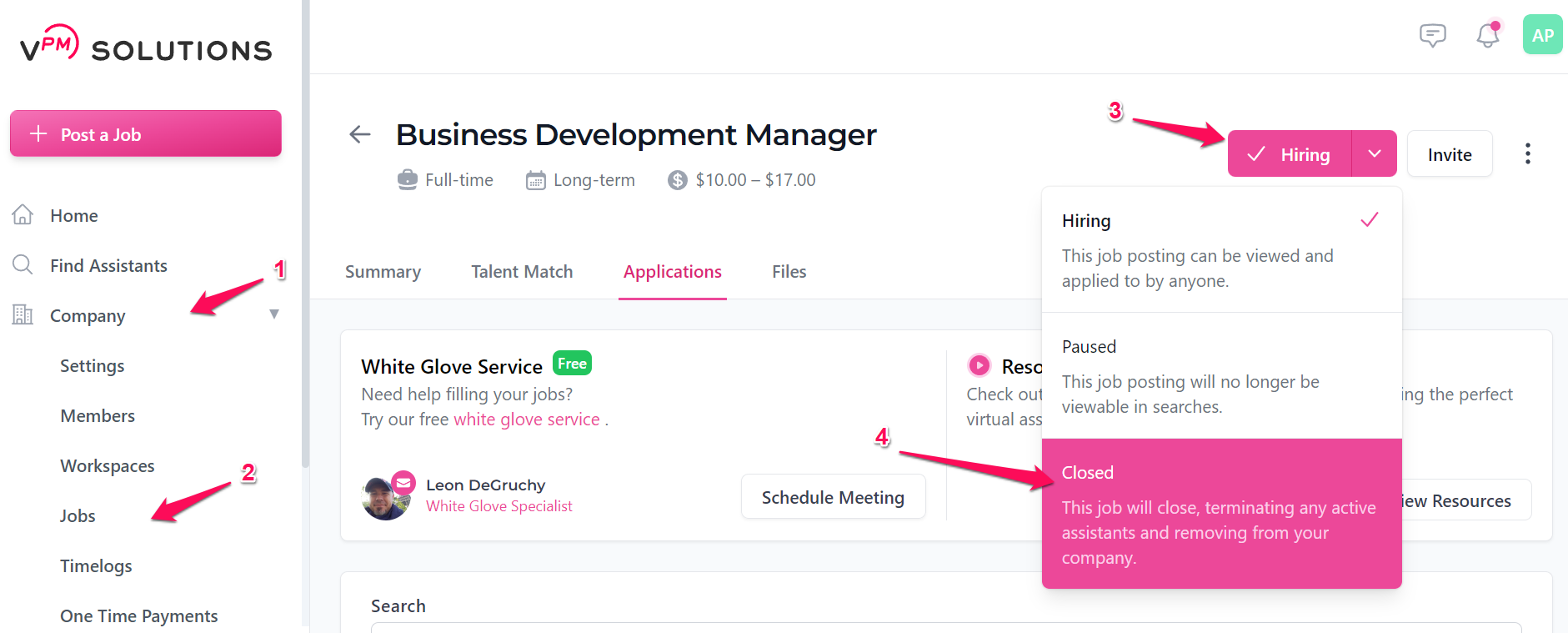
⚠️ Warning: Be careful when using this feature. Closing a job will end your Virtual Team Member access to time logs. Please note that this action is irreversible.
Note: When a job is closed, the remote team member can no longer enter timelog. However, the company can still send a one-time payment for any unpaid hours.
Interactive Guide: Closing a Job
** Best experienced in Full Screen (click the icon in the top right corner before you begin) **
Contact Support
If you have any questions or are in need of assistance, please submit a ticket via our support channel.
Submit a Ticket